Chi-Square Tests Using Microsoft Excel
Using Microsoft Excel for Chi-Square Tests
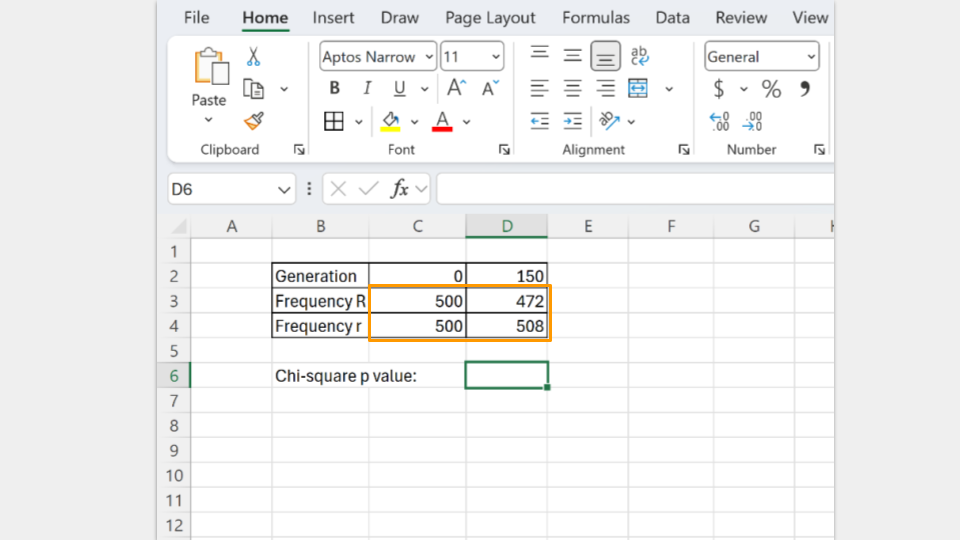
First, open a new Excel spreadsheet. You will create a table that has the frequency of each allele as rows and the generations (generation 0, or the start, and generation 150) as columns.
Once you’ve created your table, you should fill in the total count of each allele in the appropriate cell. In your earlier tables, you recorded the allele proportions, but the chi-square formula requires the actual number of each allele.
The formula for calculating allele frequency is (total number of fish)*(allele proportion).
So, if you start with 200 koi fish and an allele proportion of 0.5 for R, the total number of R alleles present in the population is 200. (Remember, each koi fish has 2 alleles, so a population of 200 fish means 400 alleles, and half of them are R to start.) A population of 75 koi fish means 150 total alleles.
Type in the number of R and r alleles for both the starting population (generation 0) and the ending population (generation 150).
Next, type in the formula to run a chi-square test. In Excel, the formula follows the convention
=chisq.test(actual_range, expected_range)
The actual_range are the allele frequencies at generation 150. The expected_range are the allele frequencies at the start (generation 0).
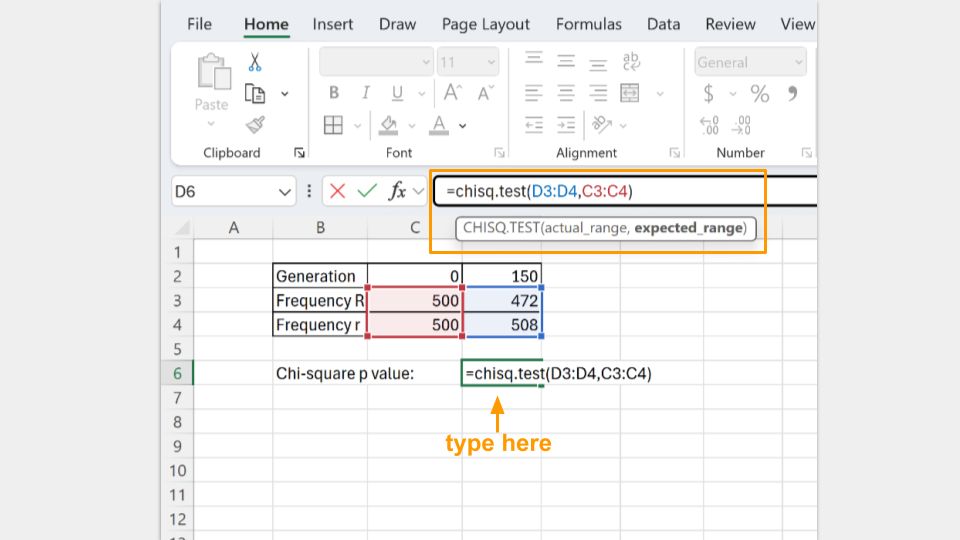
In the cell where the formula is typed, Excel will return the p-value for your chi-square test. A p-value greater than 0.05 suggests that your koi fishpond population is indeed at equilibrium. (Note: Excel may tell you there is a possible error in your formula because adjacent cells are omitted. You can ignore this, because it’s asking why you omitted the “0” and “150” that are your column headers.)